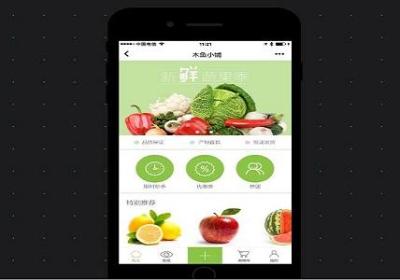
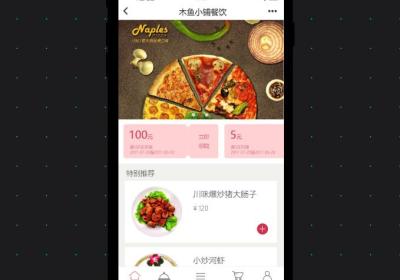
演示

下面是UI给的图

特性
- 简单易用 —— 一个 json 搞定绘制图片
- 功能全 —— 满足 90% 的使用场景
- 绘制文本(换行、超出内容省略号、中划线、下划线、文本加粗)
- 绘制图片
- 绘制矩形
- 保存图片
- 多图绘制
- ...
- 代码量小
体验
git clone git@github.com:luckboyfcl/canvasTest.git
使用
git clone git@github.com:luckboyfcl/canvasTest.git到本地
把 components 中的 canvasdrawer 拷贝到自己项目下。
在使用页面注册组件
{ "usingComponents": { "canvasdrawer": "/components/canvasdrawer/canvasdrawer" }}复制代码在页面 **.wxml 文件中加入如下代码
canvasdrawer painting="{{painting}}" bind:getImage="eventGetImage"/复制代码painting 是需要传入的 json。 getImage 方法是绘图完成之后的回调函数,在 event.detail 中返回绘制完成的图片地址。
当前栗子中的 painting 简单展示一下。详细配置请看 API
painting: { width: 656, //这里的宽度 指的是 分享海报 的宽 height: 1320, clear: true, views: [{ type: 'image', url: '../../img/share2.png', top: 0, left: 0, width: 656, height: 1320 }, { type: 'image', url: '../../img/avatar.jpeg', top: 46, left: 200, width: 92, height: 92 }, { type: 'image', url: '../../img/0722_tbg1.png', top: 46, left: 200, width: 92, height: 92 }, { type: 'image', url: '../../img/avatar.jpeg' , top: 46, left: 360, width: 92, height: 92 }, { type: 'image', url: '../../img/0722_tbg1.png', top: 46, left: 360, width: 92, height: 92 }, { type: 'image', url: '../../img/wxacode.jpeg', top: 1042, left: 448, width: 164, height: 164 }, { type: 'text', content: '我对romantic丶木槿的', fontSize: 30, color: '#fff', textAlign: 'center', top: 144, left: 328, bolder: true }, { type: 'text', content: '25.8%', fontSize: 86, color: '#fb4b50', textAlign: 'center', top: 294, left: 328, bolder: true }, { type: 'text', content: '36', fontSize: 24, color: '#2200FF', textAlign: 'left', top: 584, left: 42, bolder: true }, { type: 'text', content: '45', fontSize: 24, color: '#2200FF', textAlign: 'left', top: 678, left: 42, bolder: true }, { type: 'text', content:'36', fontSize: 24, color: '#2200FF', textAlign: 'left', top: 772, left: 42, bolder: true }, { type: 'text', content: '78', fontSize: 24, color: '#2200FF', textAlign: 'left', top: 866, left: 42, bolder: true }, { type: 'text', content: '89', fontSize: 24, color: '#2200FF', textAlign: 'left', top: 960, left: 42, bolder: true }, { type: 'text', content: '56', fontSize: 24, color: '#2200FF', textAlign: 'left', top: 584, left: 370, bolder: true }, { type: 'text', content:'23', fontSize: 24, color: '#2200FF', textAlign: 'left', top: 678, left: 370, bolder: true }, { type: 'text', content: '12', fontSize: 24, color: '#2200FF', textAlign: 'left', top: 772, left: 370, bolder: true }, { type: 'text', content:'12', fontSize: 24, color: '#2200FF', textAlign: 'left', top: 866, left: 370, bolder: true }, { type: 'text', content: '12', fontSize: 24, color: '#2200FF', textAlign: 'left', top: 960, left: 370, bolder: true } ] }
API
数据对象的第一层需要三个参数: width、height、views。配置中所有的数字都是没有单位的。这就意味着 canvas 绘制的是一个比例图。具体显示的大小直接把返回的图片路径放置到 image 标签中即可。
当前可以绘制3种类型的配置: image、text、rect。配置的属性基本上使用的都是 css 的驼峰名称,还是比较好理解的。
image(图片)
属性含义默认值可选值
| url | 绘制的图片地址,可以是本地图片,如:/images/1.jpeg | | |
| top | 左上角距离画板顶部的距离 | | |
| left | 左上角距离画板左侧的距离 | | |
| width | 要画多宽 | 0 | |
| height | 要画多高 | 0 | |
text(文本)
属性含义默认值可选值
| content | 绘制的图片地址 | ''(空字符串) | |
| color | 颜色 | black | |
| fontSize | 字体大小 | 16 | |
| textAlign | 文字对齐方式 | left | center、right |
| lineHeight | 行高,只有在多行文本中才有用 | 20 | |
| top | 文本左上角距离画板顶部的距离 | 0 | |
| left | 文本左上角距离画板左侧的距离 | 0 | |
| breakWord | 是否需要换行 | false | true |
| MaxLineNumber | 最大行数,只有设置 breakWord: true ,当前属性才有效,超出行数内容的显示为... | 2 | |
| width | 和 MaxLineNumber 属性配套使用,width 就是达到换行的宽度 | | |
| bolder | 是否加粗 | false | true |
| textDecoration | 显示中划线、下划线效果 | none | underline(下划线)、line-through(中划线) |
rect (矩形,线条)
属性含义默认值可选值
| background | 背景颜色 | black | |
| top | 左上角距离画板顶部的距离 | | |
| left | 左上角距离画板左侧的距离 | | |
| width | 要画多宽 | 0 | |
| height | 要画多高 | 0 | |
tip:wx.opensetting废弃之后在微信开发工具调试引导授权会失效,可以真机测试看效果
TAG标签:
微信小程序微信海报尺寸
http://www.xiaochengxub.com/read-102451.html