小程序tabbar自定义-小程序底部tabbar自定义教程分享
小程序tabbar自定义教程-小程序底部tabbar自定义教程分享
解决自定义tabbar闪屏的问题, 参考链接: https://developers.weixin.qq.com/community/develop/doc/000c6e038c0ce05413f71e7ce56c04
对于下面的文章, 因为写的不好, 并且问题也多, 所以不建议去看了. 可以直接下载代码压缩包,毕竟在编译器上看代码还是最爽的.
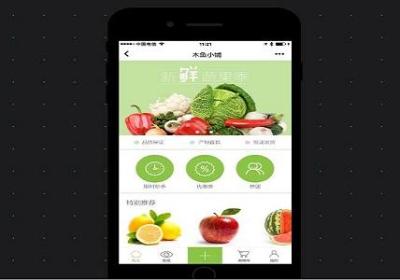
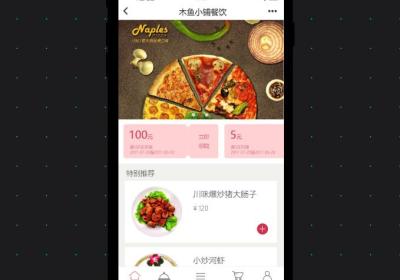
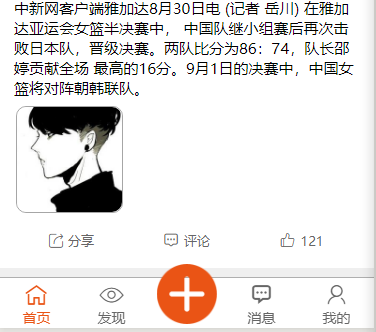
因为需求,小程序自带的tabBar不能满足, 所以只能来自己重新写一个. 先看效果图吧
首页:
发现:

消息:

我的:

接下来看代码:
1- 组件-- tabBarBottom.wpy 这里页面也可以用循环来写, 不过就要在样式上再去调整, 我这里没有用循环, 就将就看吧.....
view 中的 c-y 与 c-gray 是公共样式中, 控制图标颜色的切换; 因为这里的图标我用的是阿里云图标, 不是图片, 可以自己替换成图片, 根据 selected 进行图片切换
//如果替换成图片 写法 替换图片注意样式, 样式应该要进行调整 // {{tabBar.list[0].text}} {{tabBar.list[1].text}} {{tabBar.list[2].text}} {{tabBar.list[3].text}} .tabBarBox{ width: 100%; height: 100rpx; background-color: #fff; position: fixed; bottom: 0; z-index: 9999; border-top: 1px #afafaf solid; } .itemView2{ margin-left: 150rpx; } .itemView{ width: 150rpx; height: 100rpx; text-align: center; display: inline-block; padding-top: 6rpx; .item_icon{ font-size: 50rpx; } .item_text{ font-size: 28rpx; } } .addView{ width: 150rpx; position: fixed; bottom: 0; text-align: center; display: inline-block; .add_icon{ width: 120rpx; height: 120rpx; } }
2- tabBar的数据 , 我放在了启动文件中 app.wpy
1 globalData = { 2 userInfo: null, // tabBar数据 3 tabBar:{ 4 list: [ 5 { 6 pagePath: "home", 7 text: "首页", 8 icon_class: "iconfont icon-tab-home", //这里用的是阿里图标, 可以替换成图片 9 selected: true //图片写法 // img: '未选中的图片路径', // img_act: '被选中的图片路径' 10 }, 11 { 12 pagePath: "find", 13 text: "发现", 14 icon_class: "iconfont icon-tab-find", 15 selected: false 16 }, 17 { 18 pagePath: "news", 19 text: "消息", 20 icon_class: "iconfont icon-tab-news", 21 selected: false 22 }, 23 { 24 pagePath: "myInfo", 25 text: "我的", 26 icon_class: "iconfont icon-tab-my", 27 selected: false 28 } 29 ] 30 } 31 } // 处理tabBar中点击, 被点击,将当前的数据对象中 selected 改成true, 其余的就得改成 false; 这里的id是标识, 在调用时手动传入的; id 与 tabBar数组每一个对象索引要对应 32 tabBarClickHandle(id, that) { 33 let tbList = this.globalData.tabBar.list; 34 tbList.forEach((item, index) => { 35 if (id == index) { 36 tbList[id].selected = true; 37 } else { 38 tbList[index].selected = false; 39 } 40 }); 41 that.$apply(); 42 return this.globalData.tabBar; 43 }
3- 首页中使用组件 剩余的 发现,消息,我的这三个页面中都是这样的用法, 都是这五步, 不过剩余的三个 在第四步中 id要变 发现--id-1 消息--id-2 我的--id-3
1 2 3 // ⑤: 使用组件, 将数据传递给组件 4 5 6 7 8 慢慢积累,慢慢成长,加油!!
TAG标签: 小程序tabbar
声明:本站所有文章资源内容,如无特殊说明或标注,均为采集网络资源。如若本站内容侵犯了原著者的合法权益,可联系本站删除。